See your team's hours
Your team's day on Overview, and their hours over time in Reports.

Overview shows your team's day right now. Reports adds up their hours over a week, a month or any dates you pick.
Before you start
Counted hours are work only. Breaks are their own figure and are never added in.
Read Overview
Step 1: Open Overview
- Click Overview in the sidebar.
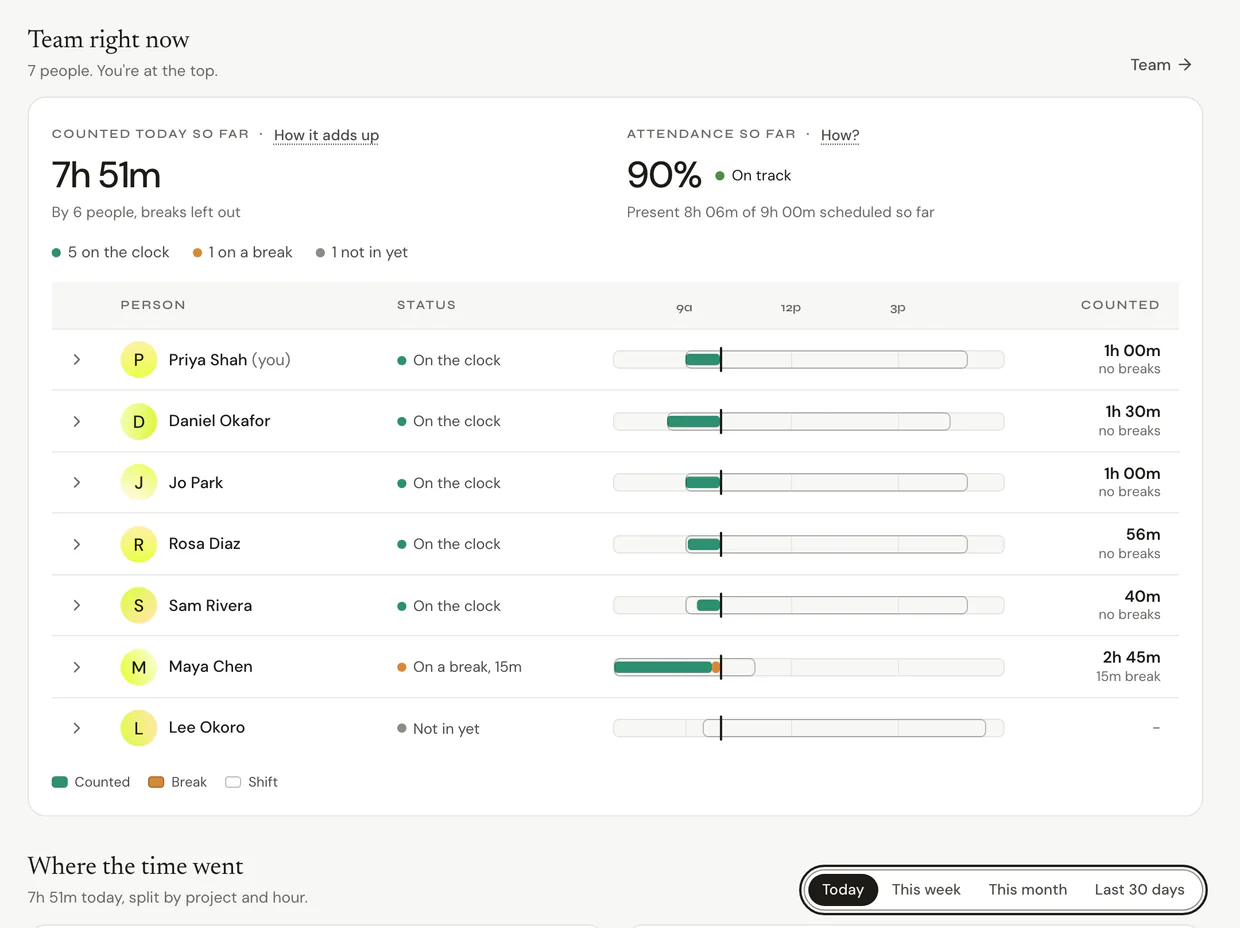
- Under Team right now, see who's on the clock, on a break or not in yet.
- Under Where the time went, see hours by project. On Team and Business, switch between Today, This week, This month and Last 30 days.
Note: On Team and Business, anything waiting on you shows at the top, like "3 things to review". Press Review to approve them right there.
Read Reports
Step 1: Pick the period and people
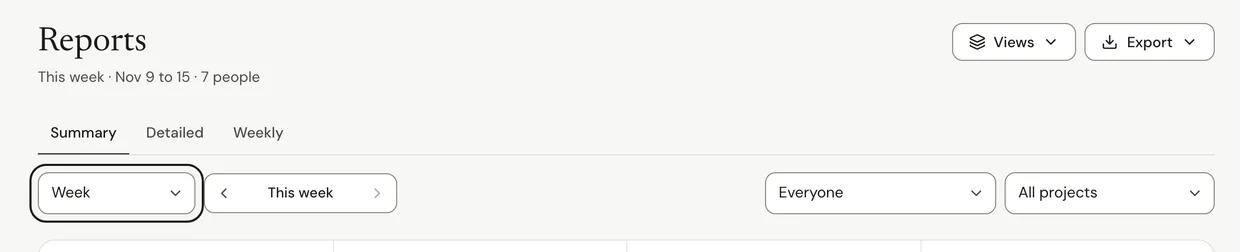
- Click Reports in the sidebar.
- Pick the period. Narrow it to some people or a project if you like.
- Choose a tab: Summary, Detailed or Weekly.
Step 2: Read the numbers
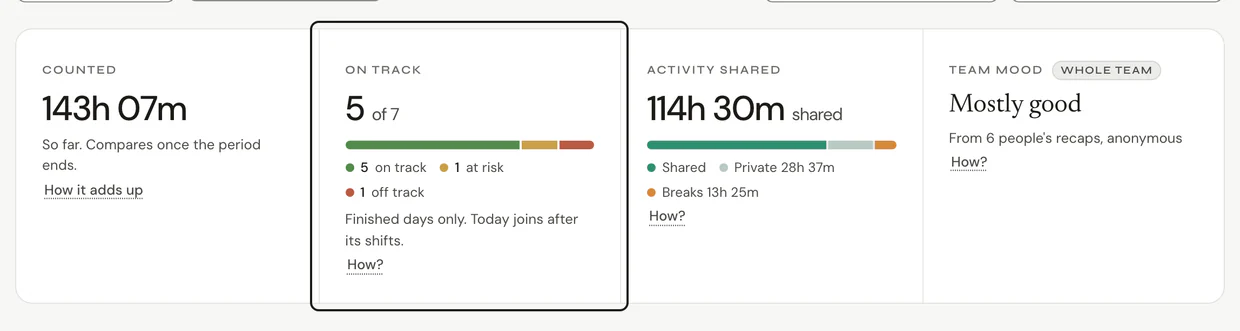
- Counted is the work time, by person or by project.
- On track shows how many people are On track, At risk or Off track against their shifts. Press How? to see what each one means.
- Activity shared shows how much detail people chose to share and how much they kept private, never what it was.
- Team mood is an anonymous average across everyone you can see, from 5 or more people. It never shows a person.
Step 3: Open one person, or export
- To see one person's period, open their row and press the button with their name, like Open Sam's week. You see each day, their latest recap and where the time went.
- To share the numbers, click Export and pick CSV or PDF.

Common questions
Q: Why don't breaks count?
Counted is work only. Breaks show on their own so you can see them, never as a score and never added to counted time.
Q: Can I see the sites someone visited?
Only what they share. Each person reviews their sites and apps and chooses what to share. A day nobody reviews within your team's review window is shared as captured. Their hours always count and always show. See What can my team see?.
Q: I'm a manager. What do I see?
The people who report to you. There's no Money tab for managers.
Q: Can I try Reports before my team has data?
Yes, if you're an owner or admin. Turn on See it with a sample team. It's made-up people, never saved or exported, and never mixed with your real hours.
Q: Where's Money?
Money is a tab in Reports on Business, for owners and admins. See Projects, clients and money, and add rates first in Set client rates.
What's next?
Need help? Go to Settings > Help and support and press Open chat, or email us at support@ruam.ai.