Approve time and time off
Review the time people add, the weeks they send, and their time off.

Click Approvals, read each request, and press Approve or Decline. You can undo any decision.
Before you start
Time Ruam tracks counts on its own. Approvals is for time people add manually, the weeks or months they send, their time off, and now and then a very long day.
Review what's waiting
Step 1: Open Approvals
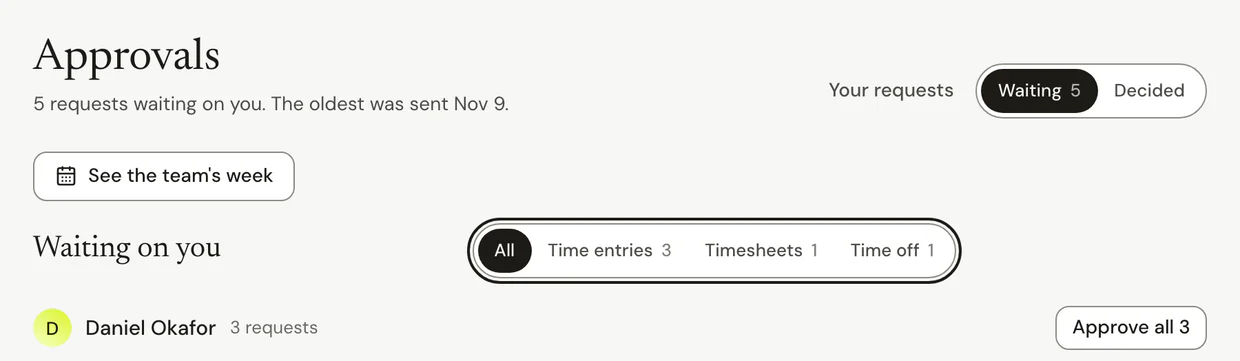
- Click Approvals in the sidebar. The number beside it is everything waiting on you.
- Under Waiting on you, pick Time entries, Timesheets or Time off to see one kind, or leave it on All.
Step 2: Approve or decline
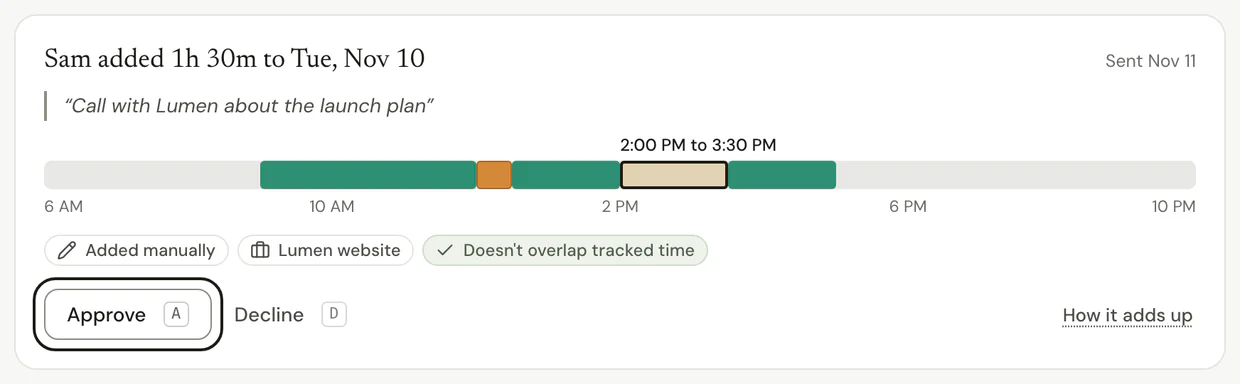
- Read the request. Each card shows the time, the note, and how it changes that person's day or week.
- Press Approve. For a week or month, the button says Approve week or Approve month, and it also approves any time entries inside it.
- To say no, press Decline, or Return it for a week or month. Write why, and send it. They see your note.
Step 3: Approve several at once
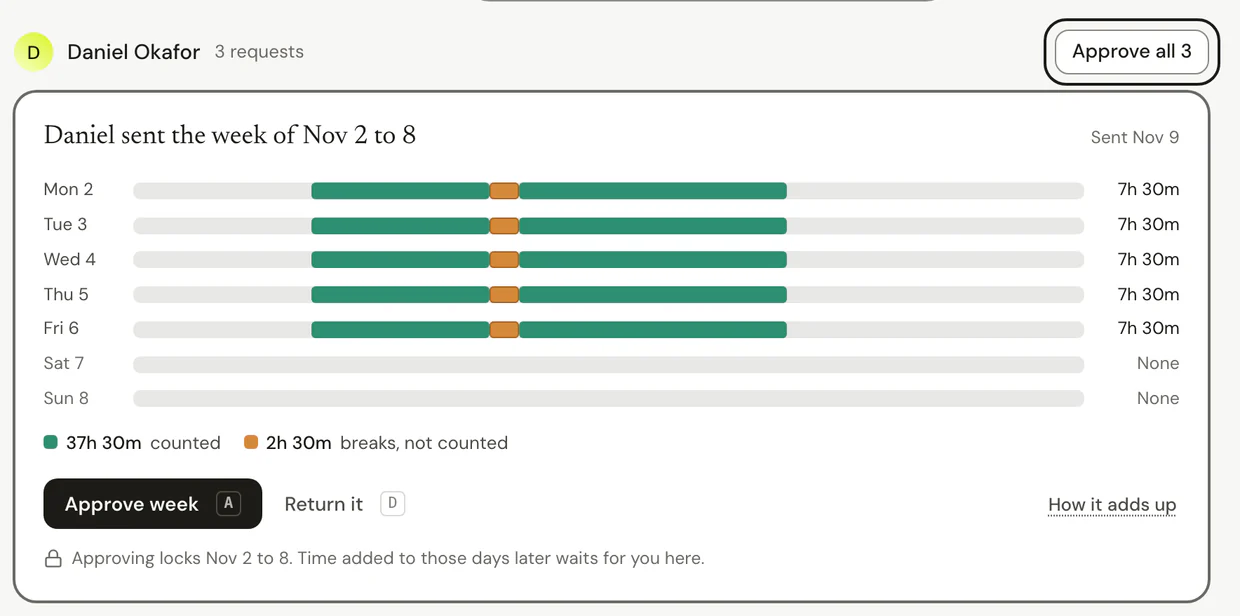
- When one person has more than one request, press Approve all beside their name.
Note: After each decision, an Undo shows in the message at the bottom of the page. The decision is sent once that message closes.
Step 4: Change a decision
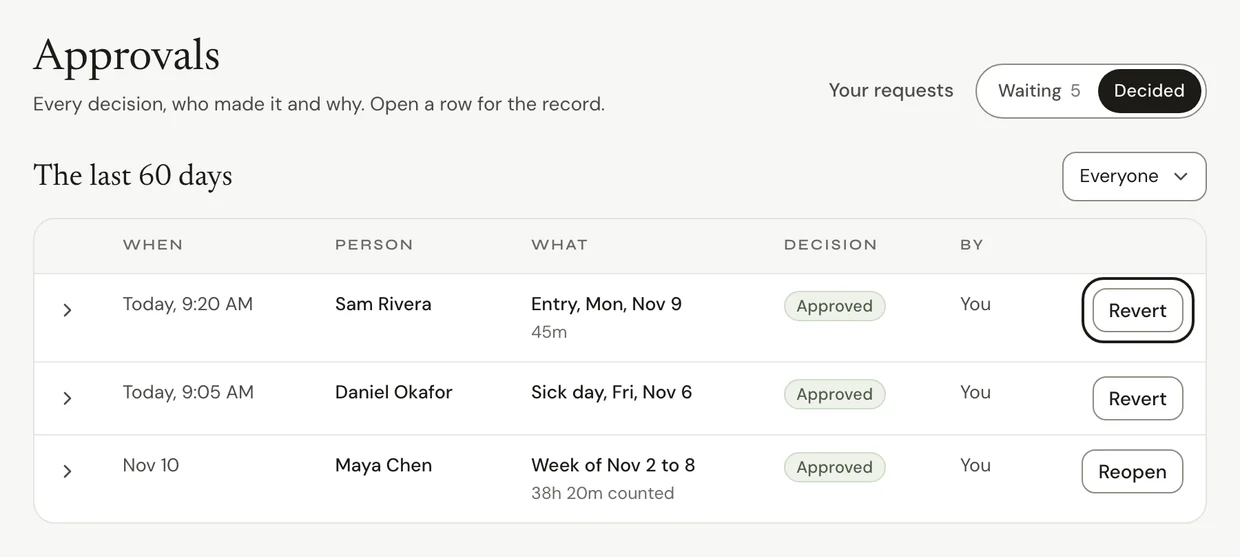
- On Approvals, switch to Decided. You see the decisions from the last 60 days.
- Press Revert on a decision you made. Only the person who made a decision can revert it. It goes back under waiting.
- If it sits inside a week or month that's already approved, press Reopen instead and say why. They can change it and send it again.
Common questions
Q: Who approves an owner's or admin's own time?
Nobody approves their own. In Settings > Timesheets and approvals, under Owner and admin time, choose Approve automatically or Send to an approver, and pick who.
Q: Who approves my time as a manager?
The person you report to, or an owner or admin. To see your own requests, press Your requests at the top of Approvals.
Q: Can I go faster with the keyboard?
Yes. Use J and K to move between requests, A to approve, D to decline and Z to undo.
Q: Do people hear what I decided?
Yes. They see your answer in Updates and on My Requests, with your note if you declined.
What's next?
Need help? Go to Settings > Help and support and press Open chat, or email us at support@ruam.ai.