Add time you missed
Fill a gap in your day when you worked away from your computer.

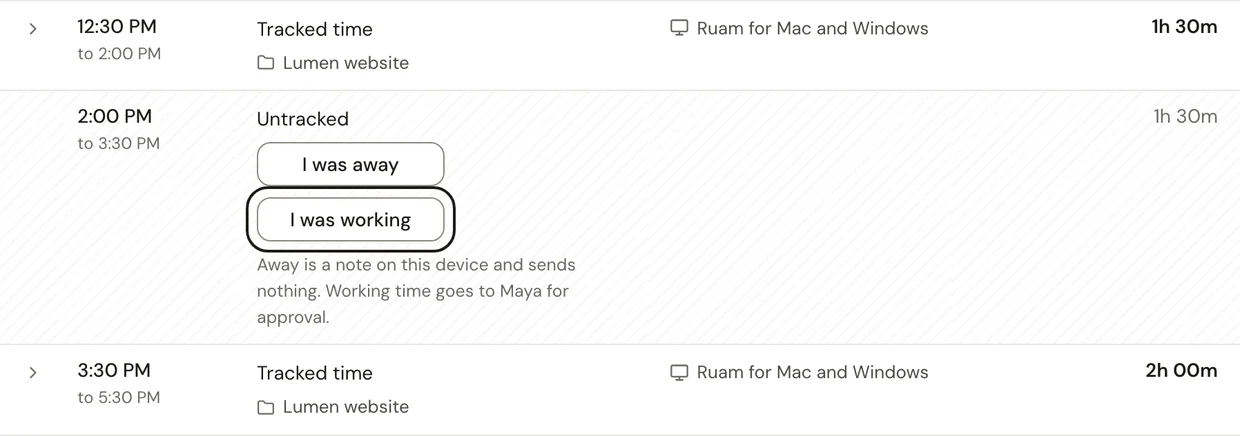
Open the day in My Logbook, press I was working on the untracked stretch, and say what you worked on.
Before you start
You can fill a gap once your day is done. Until then, the row tells you when you can add it. Your team chooses how far back you can add time.
On Team and Business, time you add waits for review before it counts. On Free, Solo and Starter, it counts as soon as you add it.
Fill a gap
Step 1: Find the gap
- Click My Logbook in the sidebar.
- Open the day you missed.
- Find the striped row marked Untracked.
Step 2: Say what you worked on
- Press I was working.
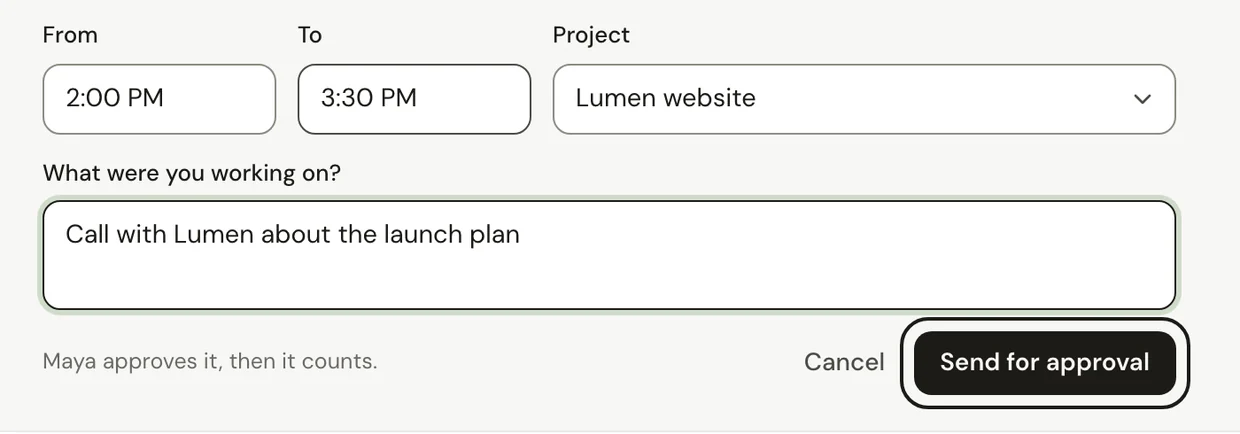
- Check the From and To times. Pick a Project if it was for one.
- Under What were you working on?, write a short note, like "Client call about the Q4 plan".
Step 3: Send it
- Press Send for approval. On Free, Solo and Starter, the button says Add time.
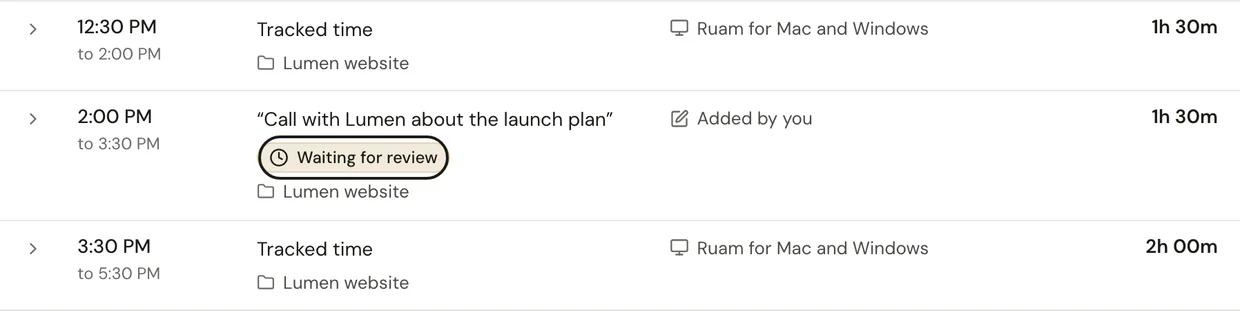
On Team and Business, the time shows in your day as Waiting for review. It counts once the person who approves your time approves it.
Common questions
Q: What does I was away do?
It marks the gap as time you were away. It's a note on this device only. It sends nothing to anyone and never counts.
Q: Where do I see what's waiting?
On Team and Business, click My Requests in the sidebar. It lists everything waiting and every answer from the last 60 days. Answers also come to Updates. Managers, admins and owners press Your requests at the top of Approvals instead.
Q: Who approves my time?
The person you report to. If you don't report to anyone, an owner or admin does.
Q: Can my time wait for review even when I didn't add it?
Yes, now and then. On a team, a very long day goes to the person who approves your time to check. You see it in your day as waiting, and it counts once it's approved.
What's next?
Need help? Go to Settings > Help and support and press Open chat, or email us at support@ruam.ai.