Take a break
Step away without it counting as work.

By Indrayudh SenUpdated
PlansEvery plan
WhoEveryone who counts their own hours.
Press Take a break when you step away, and End my break when you're back. Breaks are kept apart from your counted time.
Before you start
Take a break lives where Ruam counts your hours:
- Ruam for Mac or Windows: click the Ruam icon in your menu bar or tray.
- The Chrome extension: click the Ruam icon in your toolbar.
- The web clock: go to My Time Clock, if your team clocks in from the dashboard.
Take a break
Step 1: Start a break
- Click Take a break in Ruam for Mac or Windows, in the extension, or on My Time Clock.
Step 2: Come back
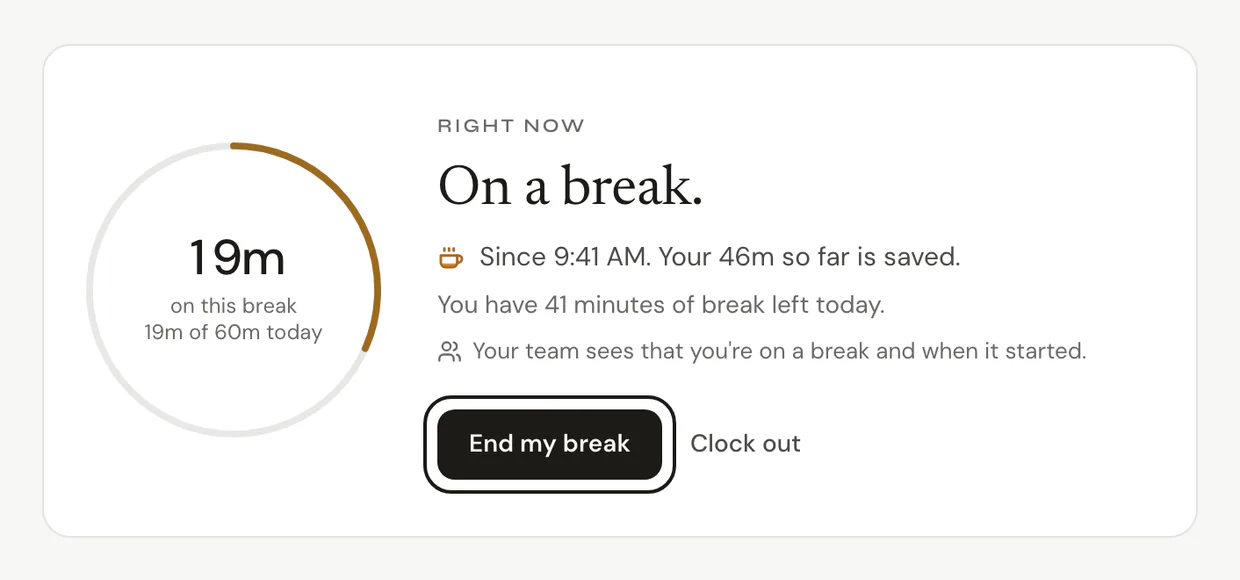
- Click End my break in the same place.
- Ruam says Welcome back and keeps counting.

Common questions
Q: Where do I see my breaks?
In My Logbook. Each break shows on its day, apart from your counted time.
Q: Is there a limit?
Only if your team sets one. My Time Clock then shows how much break you have left today.
Q: Who sees my breaks?
On a team, your manager and the team's owner and admins see your breaks with your hours. If you use the web clock, they also see when each break started and ended. Breaks are never scored or ranked.
What's next?
Need help? Go to Settings > Help and support and press Open chat, or email us at support@ruam.ai.