Use Ruam in Slack
Start and end your day with /ruam, and let your Slack status follow your day.

An owner or admin connects Slack in Settings > Integrations. Then each person links their own Slack and can start, pause and end their day with /ruam.
Before you start
Your team already connected Slack? Skip to Link your own Slack below.
When you connect Slack, Slack's install screen shows a red App not approved by Slack label. That's normal for a new Slack app that isn't in the Slack Marketplace yet, and it doesn't stop you from installing Ruam. Slack's Marketplace review usually takes a couple of months. The label goes away if Slack approves Ruam for the Marketplace.
Slack only ever sees your hours, your status and your breaks. Never sites, apps, page titles, notes or mood. Ruam never reads your Slack messages.
Connect Slack for your team
Step 1: Open Integrations
- Click Settings at the bottom of the sidebar.
- Click Integrations.
- Click Connect Slack. To see what Ruam asks Slack for first, click See what Ruam asks Slack for.
Step 2: Allow Ruam in Slack
- Pick your workspace if Slack asks.
- Slack asks to add the /ruam command and to send messages as Ruam. Nothing that reads messages or channels.
- Click Allow.
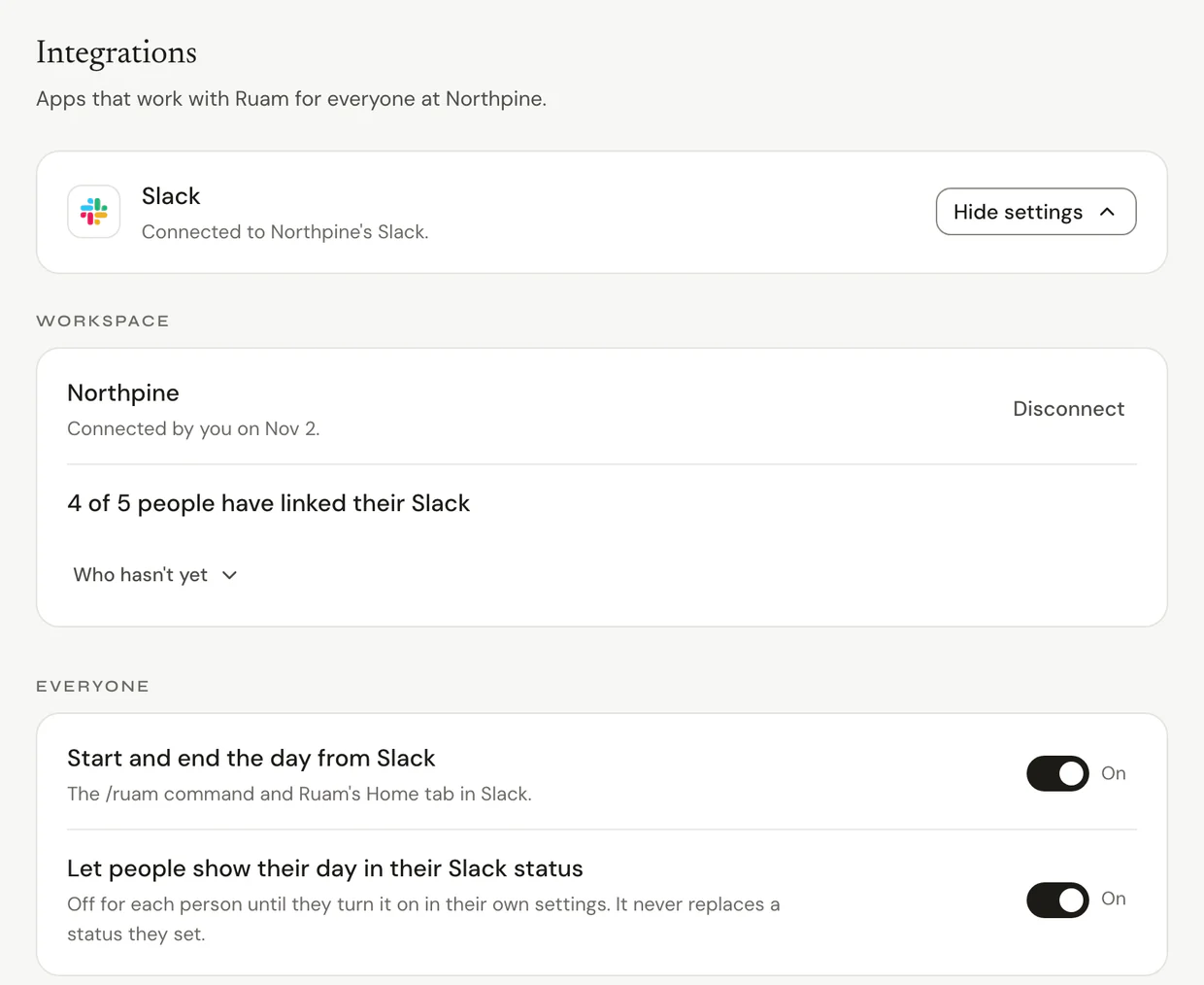
Back in Ruam, the card says your team is connected to your workspace's Slack and shows how many people have linked theirs. You're linked too.
Step 3: Choose what the team can use
- Start and end the day from Slack turns on the /ruam command and Ruam's Home tab in Slack.
- Let people show their day in their Slack status lets each person turn on their own status. It's off for each person until they turn it on, and by default it never replaces a status they set.
Both are on when you connect.
Link your own Slack
- Type /ruam in Slack and click Link your Slack. Or click Link your Slack in Settings > Connected accounts (in Settings > Integrations on Free and Solo).
- Sign in to Slack with the same account you use there.
- You're linked. The command you typed runs now, and Ruam replies in your messages with Ruam.
Use /ruam
Type these in any channel or in your messages with Ruam. Only you see the replies.
- /ruam start: start your day.
- /ruam break: take a break.
- /ruam back: end your break.
- /ruam end: end your day.
- /ruam status, or just /ruam: see today's hours.
- /ruam help: see this list.
If your hours count with the web clock, these start, pause and end it. The web clock counts while a Ruam tab is open, as it always does. If they count with the Chrome extension or Ruam for Mac or Windows, start your day and take breaks there; Slack tells you where. On a day without a shift, /ruam end ends your day. On a shift day, your shift ends it: /ruam end tells you when, and how to stop early in the app or the extension.
Let your Slack status follow your day
- In Settings > Connected accounts (Settings > Integrations on Free and Solo), turn on Show when I'm working in my Slack status.
- Click Continue in Slack and allow Ruam to set and clear your Slack status.
Ruam sets your status when your day starts, changes it for a break, and clears it when your day ends. It says you're working or on a break, never why you're away. Don't replace a status I set myself is on unless you turn it off, so a status you set stays put.
The Ruam Home tab
Open Ruam in Slack's sidebar to see today's counted hours, whether you're working, on a break or done, your breaks, the next thing you can do, and this week's hours by day. It also says whether your Slack status follows your day, with a link to change it in Ruam. Your days are only compared with each other, never with a target.
Unlink or disconnect
- Unlink removes your own link and your status. Your team's connection stays. You can undo it right away. On Free and Solo there's no separate Unlink: Disconnect does both.
- Disconnect, for owners and admins, ends the connection for the whole team. You can undo it for a few minutes. Then Ruam ends its access at Slack and deletes its Slack tokens.
If someone removes Ruam from your workspace in Slack, Ruam stops working in Slack at once and deletes its token. Settings says when it stopped, and owners and admins get an update in Ruam. Slack statuses Ruam set may still show until people clear them. Nothing changes in Ruam: your hours stay as they are.
What Ruam keeps from Slack
- Your workspace's name, id and address, who connected it and when, and which Slack user is linked to which person in Ruam. These stay after a disconnect, so a reconnect picks up where it left off.
- The Slack access tokens, stored encrypted. A person's status token is kept while they're linked, and deleted when they unlink, the team disconnects, or Slack takes it back.
- The last status Ruam set for you, so it never overwrites yours.
Ruam doesn't read or store Slack messages or channel contents.
Common questions
Q: Why does Slack say "App not approved by Slack"?
Ruam isn't in the Slack Marketplace yet. That's normal for a new Slack app and doesn't stop you from installing it. Slack's review usually takes a couple of months.
Q: Which plans include Slack?
Every plan.
Q: Does my manager see what I do in Slack?
No. Ruam never reads Slack. Your team sees your hours in Ruam as always.
Q: Can Slack start Ruam on my Mac or in Chrome?
No. Start your day in Ruam for Mac or Windows or the extension. On a day without a shift, /ruam end can end it. On a shift day, your shift ends it, or you stop early in the app or the extension. Starting your day from Slack in any app is on our roadmap.
Q: Slack says commands are off for my team. Why?
An owner or admin turned off Start and end the day from Slack in Settings > Integrations.
Coming to Slack
Approvals, a team summary, starting your day from any app and time off. See the roadmap for where each one stands.
What's next?
Need help? Go to Settings > Help and support and press Open chat, or email us at support@ruam.ai.