How does Ruam count my time?
What counts, when your day starts and ends, and where to check it.

Ruam counts the time you're working at your computer. Breaks are kept apart, and your day ends on its own when you stop. You can check every number in My Logbook.
Before you start
Ruam counts your hours with one of these:
- Ruam for Mac or Windows, in your menu bar or tray.
- The Chrome extension, in your browser.
- The web clock on My Time Clock, if your team clocks in from the dashboard.
On a team, only one of them counts your hours, so your time is never counted twice. The top of Settings > How you track says which one.
When your day starts and ends
- If you have a shift, Ruam counts during your shift, and a little after it if your team allows that.
- If you don't, your day starts when you start working. On Free, you press Start my day yourself.
- When you stop, press End my day in Ruam for Mac or Windows or the extension, or Clock out on the web clock. Or just walk away: Ruam ends your day at the last minute you worked.
Check your time
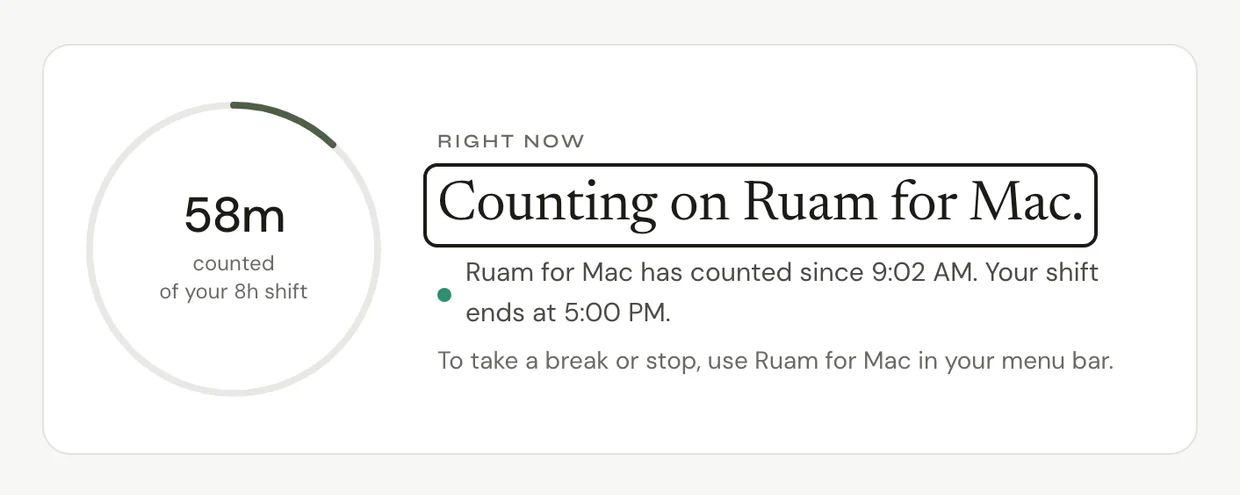
Step 1: See today
- Click My Time Clock in the sidebar.
- Check that it says Counting and your time is going up. In Ruam for Mac or Windows, you can also click the Ruam icon in your menu bar or tray to check that it's tracking.
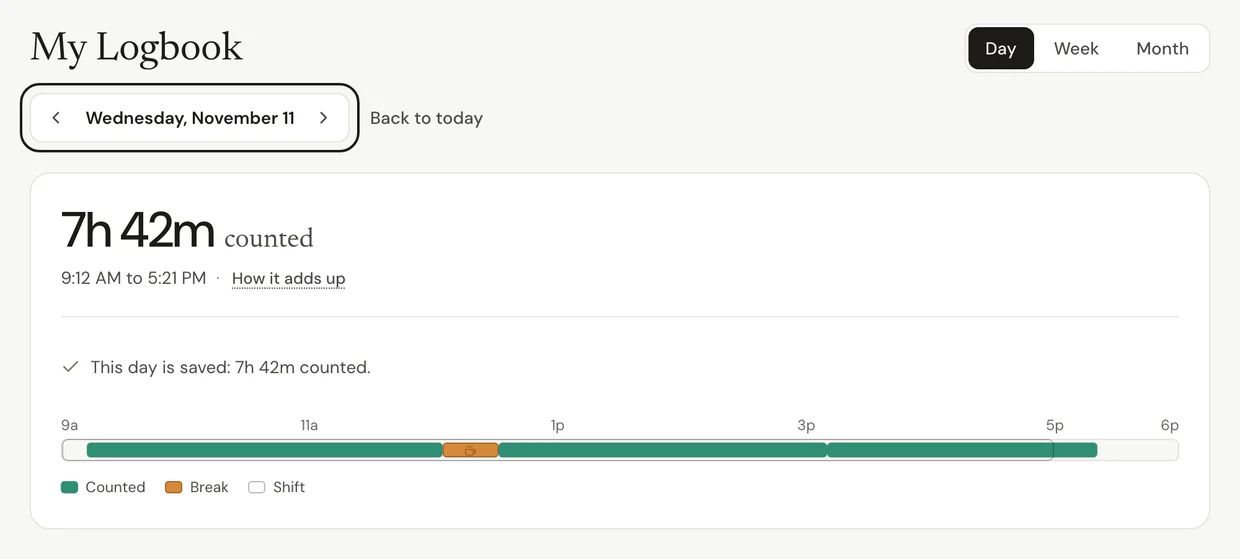
Step 2: See a past day
- Click My Logbook in the sidebar.
- Use the arrows to pick a day, or choose Week or Month.
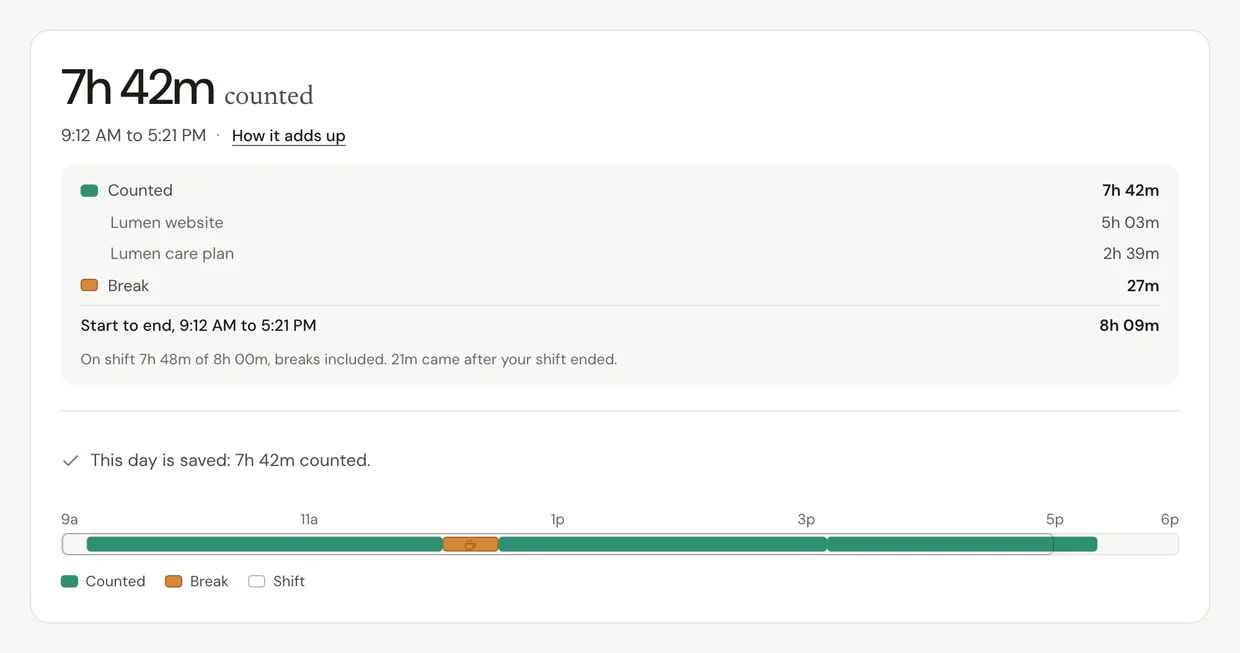
Step 3: See the math
- On any day, click How it adds up.
- Check that each part adds up to the total.
Common questions
Q: Can I start my day myself?
Yes, if you don't have a shift. Go to Settings > How your day starts and choose Manual. Then press Start my day when you begin.
Q: I forgot to stop. Did Ruam count my whole evening?
No. Once you stop working, Ruam stops counting, and the day ends at the last minute you worked.
Q: My hours look wrong. What should I check?
Open the day in My Logbook and click How it adds up. Missed some time? You can add it from that day. If it still looks off, tell us from Settings > Help and support.
Q: What if I lose internet?
Keep working. Your time saves on its own and sends when you're back online.
What's next?
Need help? Go to Settings > Help and support and press Open chat, or email us at support@ruam.ai.