What can my team see?
What your manager and admins see, and what stays private.

Your team sees your work time. Never your screen. Your manager sees the people who report to them, and owners and admins see everyone.
Your team sees
- Your hours each day, and how they compare with your schedule.
- Whether you're tracking right now, and when your tracker last checked in.
- If you use the dashboard clock: when you clocked in and out, and when each break started and ended.
- Late starts, overtime, and whether you're on track with your schedule.
- Which project each block of time was for, and any note you write on your time.
- Time you add later or record with the dashboard clock, and who approved it.
- Time off you take and its type. Any note you add goes to whoever approves it. Teammates only see that you're away.
- Your daily recap's work answers and what you'll start with tomorrow, with the day's hours and projects.
- How much of your time you kept private, never what it was, and whether you reviewed what you share.
- Your email, and whether your extension or desktop app is connected.
Owners and admins also see pay and bill rates.
On Starter there are no schedules, time off or approvals, so the lines about those don't apply.
Yours to share
The sites and apps you used during work, and for how long, are private until you share them. If you haven't reviewed a day within your team's review window (set by your employer), it's shared as captured. Your hours always count and are always visible. See Review what you share.
Your manager and admins can't see these in Ruam
- Page titles.
- Sites and apps you haven't shared.
- Your private note in the recap.
- Your mood and energy checks. They only ever count in an anonymous team average of 5 or more people.
- Your own focus and balance notes.
Not recorded by the tracker
- Screenshots or recordings of your screen.
- Keystrokes or mouse movements.
- Audio, video or your webcam.
- What's in your files.
- Full web addresses. Only the site name and page title are kept.
- Private browser windows. The desktop app records them only if you turn that on, and Safari can't tell apps which windows are private.
What's captured
- Active time: when you're active in your browser or the desktop app, during your schedule (plus your team's overtime window, up to 60 minutes) or a day you started yourself. The dashboard clock counts from clock-in to clock-out.
- Idle time: a minute with no input, or with your browser in the background, is recorded as idle. It counts as worked time only if you say you were working. How you're paid is up to your employer.
- Status: whether you're tracking right now, and when your tracker last checked in. Updated every few minutes. Your team sees this.
- Dashboard clock breaks: when each break started and ended. Your team sees this.
- Websites: the site name and page title during tracked work. Your manager and admins can't see page titles in Ruam. Never full web addresses.
- Attendance: whether you were there for your scheduled hours.
- Time you add later: past work you add yourself. Someone on your team reviews it before it counts. Owner and admin entries may be approved automatically, depending on your team's settings.
Ruam for Mac and Windows
Only when you connect it:
- Active and idle time from your computer: the app counts your work time from the menu bar, the same way the extension counts it in the browser.
- Apps you use: the names of the applications you spend time in during tracked work. App names only, never file names or anything on your screen.
- Sites you visit in your browser: when the app in front is a browser, the site name and page title, the same detail the extension records. Never page content, full web addresses or search queries. The address is trimmed to the site name on your computer before anything is sent.
- Private windows stay private: private browser windows aren't recorded unless you turn that on yourself in the app's settings. Safari doesn't let apps tell which windows are private, so Safari private windows are recorded like normal windows.
- How desktop time counts: if your team tracks with the desktop app, its time counts like any tracked time. If not, it waits for someone on your team to review it.
- Apps you exclude are never recorded: mark any app as private in Settings and Ruam won't record it at all.
The tracker doesn't read what's on your screen, or the window titles of apps other than your browser.
AI assistants
Your team can connect AI assistants like ChatGPT, Claude or Grok to Ruam. When someone asks one about the team, it can receive your name, your hours, and whether you're working or off.
- An assistant only sees what the person using it can already see in Ruam.
- It never receives your notes, recap answers, sites and apps, page titles, why you're off or what kind of time off, your break times, or your mood.
- The company behind each assistant handles what it receives under its own terms.
- Every action an assistant takes is recorded with its name. You can see which assistants are connected on your team in Settings.
Also kept
- Your acknowledgment: which version you read, when, and the internet address you read it from.
- A permanent history of every change to your recorded time, kept at least 3 years.
Your employer chose Ruam and controls some settings, like your schedule and review window. Ruam staff reach your data only to run and support the service, and it can be disclosed where the law requires.
To fix problems, Ruam may record how you use the Ruam app itself, with private details hidden. This never covers other apps or sites.
Read it in Ruam
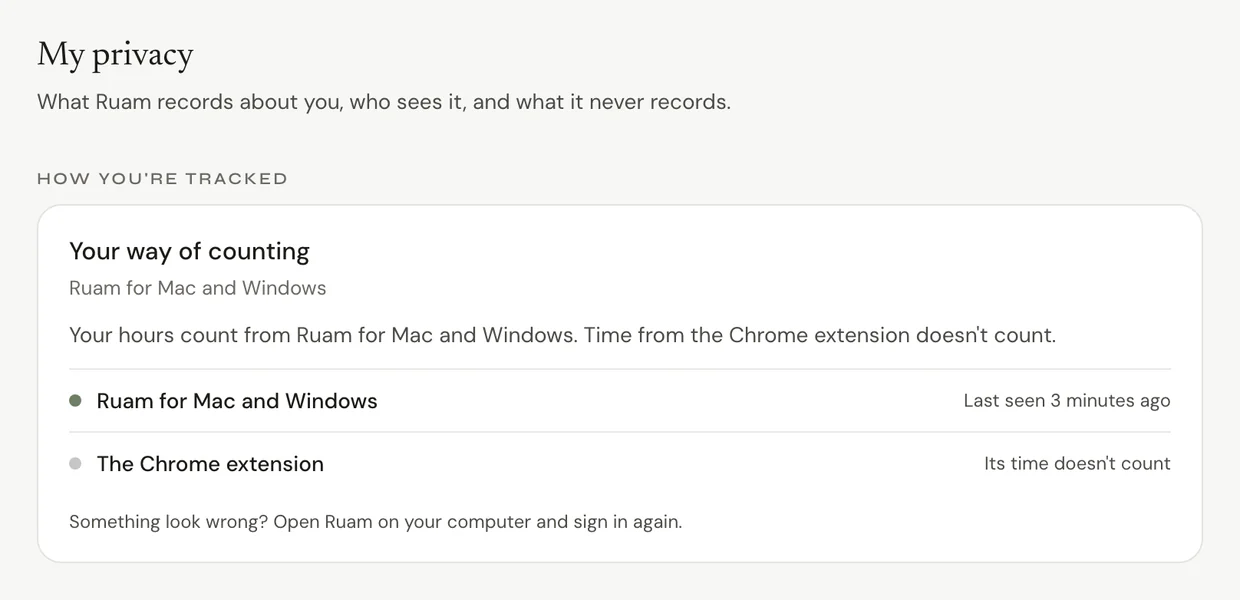
Step 1: Open your privacy settings
- Click Settings at the bottom of the sidebar.
- Click My privacy. On Free and Solo it's called Privacy.
You see how you're tracked, what Ruam records, and what Ruam doesn't do. You can also export your data there.
Common questions
Q: Can my manager see my screen?
No. Ruam never takes screenshots or recordings.
Q: Is my answer about tomorrow shared?
Yes. What you'll start with tomorrow is shared with your manager, owner and admins, along with your recap's work answers. Your private note in the recap stays yours. See Daily recap.
Q: Can I keep an app out of Ruam?
Yes. Add it under My excluded apps (desktop) in Settings > My privacy (Privacy on Free and Solo), and Ruam for Mac and Windows never records it. Only you see that list.
What's next?
Need help? Go to Settings > Help and support and press Open chat, or email us at support@ruam.ai.