Add Ruam to Chrome
Count the time you work in your browser.

Add the Ruam extension, pin it, and sign in. It takes about a minute.
Before you start
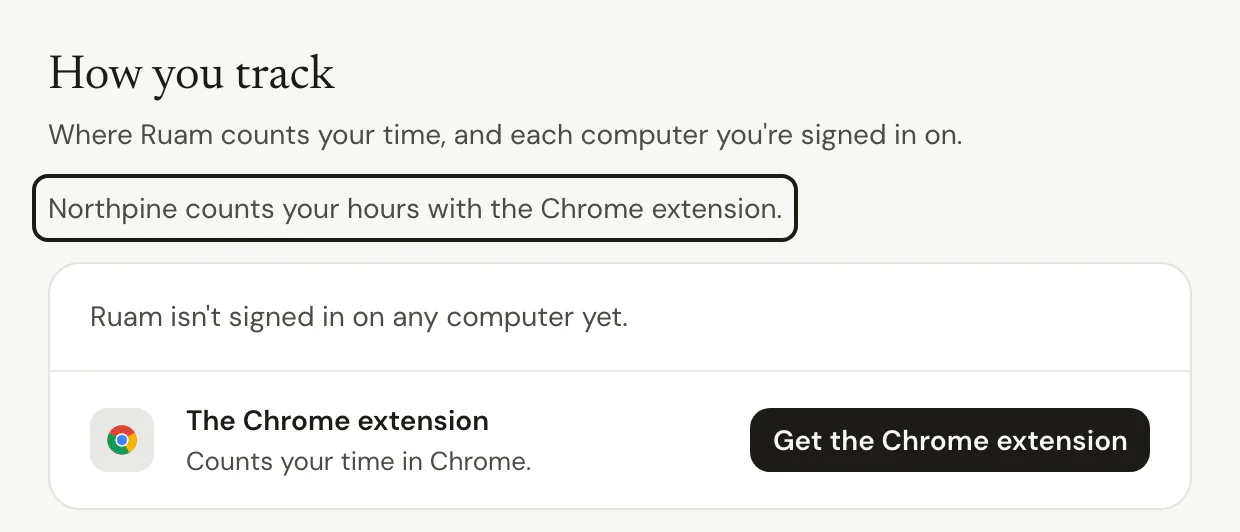
On a team, only one app counts your hours, so your time is never counted twice. The top of Settings > How you track says which app your team uses.
- If your team counts with the Chrome extension, follow the steps below.
- If your team counts with Ruam for Mac and Windows, time from the extension doesn't count. Set up Ruam on your Mac or Windows PC instead.
On Free and Solo, you choose. Every app you connect counts, and time two apps both see is counted once.
Add the extension
Step 1: Add it to Chrome
- Go to Settings > How you track.
- Click Get the Chrome extension.
- Click Add to Chrome, then Add extension.
Step 2: Pin it
- Click the puzzle piece next to the address bar.
- Click the pin next to Ruam.
Step 3: Sign in
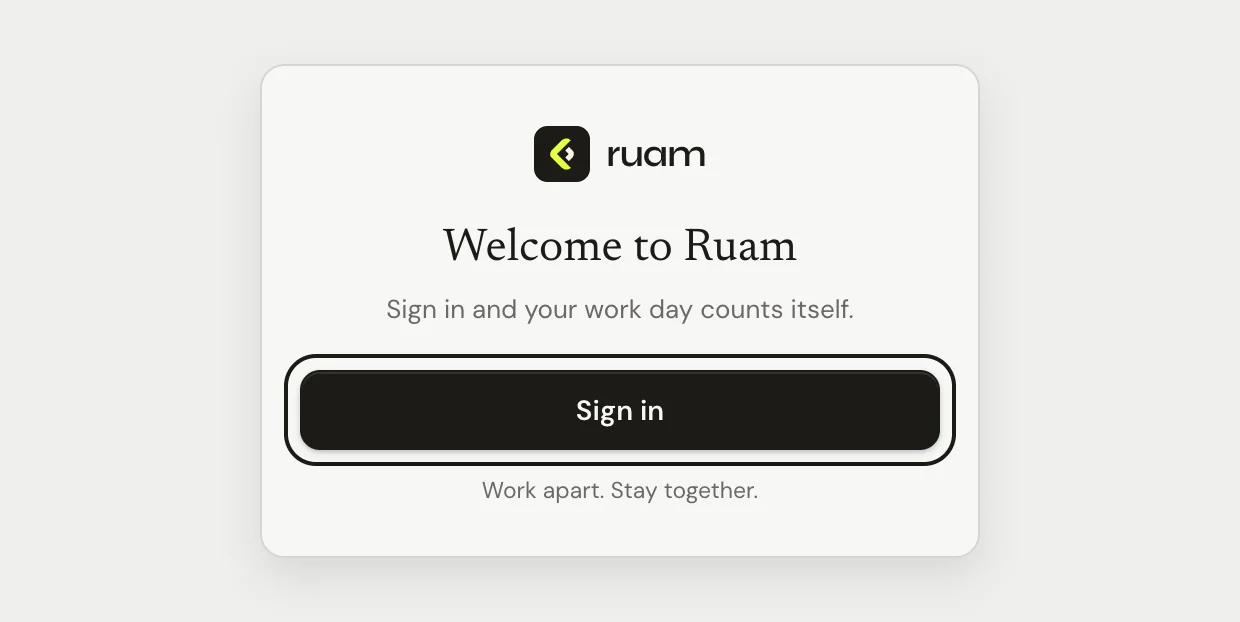
- Click the Ruam icon.
- Click Sign in.
- In the tab that opens, sign in to Ruam if it asks. When the tab says you're connected, you're done.
Common questions
Q: I don't see Get the Chrome extension. Why?
Your team counts with Ruam for Mac and Windows. If you can't install apps on your computer, click Ask to use the Chrome extension on the same page, and your manager and your team's owner and admins see the request in Updates. Owners and admins see Or use the Chrome extension there instead.
Q: I'm on Free or Solo and already use Ruam for Mac or Windows. Can I add the extension too?
Yes. Open the Ruam extension in the Chrome Web Store, add it, and sign in. Both count, and time they both see is counted once.
Q: It says "You were signed out here". What do I do?
Click Sign in again. Your time so far is saved on this computer and sends after you sign in.
Q: I use another browser. What should I use?
Ask whoever runs your team which app it counts with. It may be Ruam on your Mac or Windows PC, or the web clock on My Time Clock.
What's next?
Need help? Go to Settings > Help and support and press Open chat, or email us at support@ruam.ai.