Invite your team
Add people, choose their role and who they report to.

Go to Team, click Invite member, and send. Each person gets an email to join.
Send an invite
Step 1: Open Team
- Click Team in the sidebar.
- Click Invite member.

Step 2: Add their details
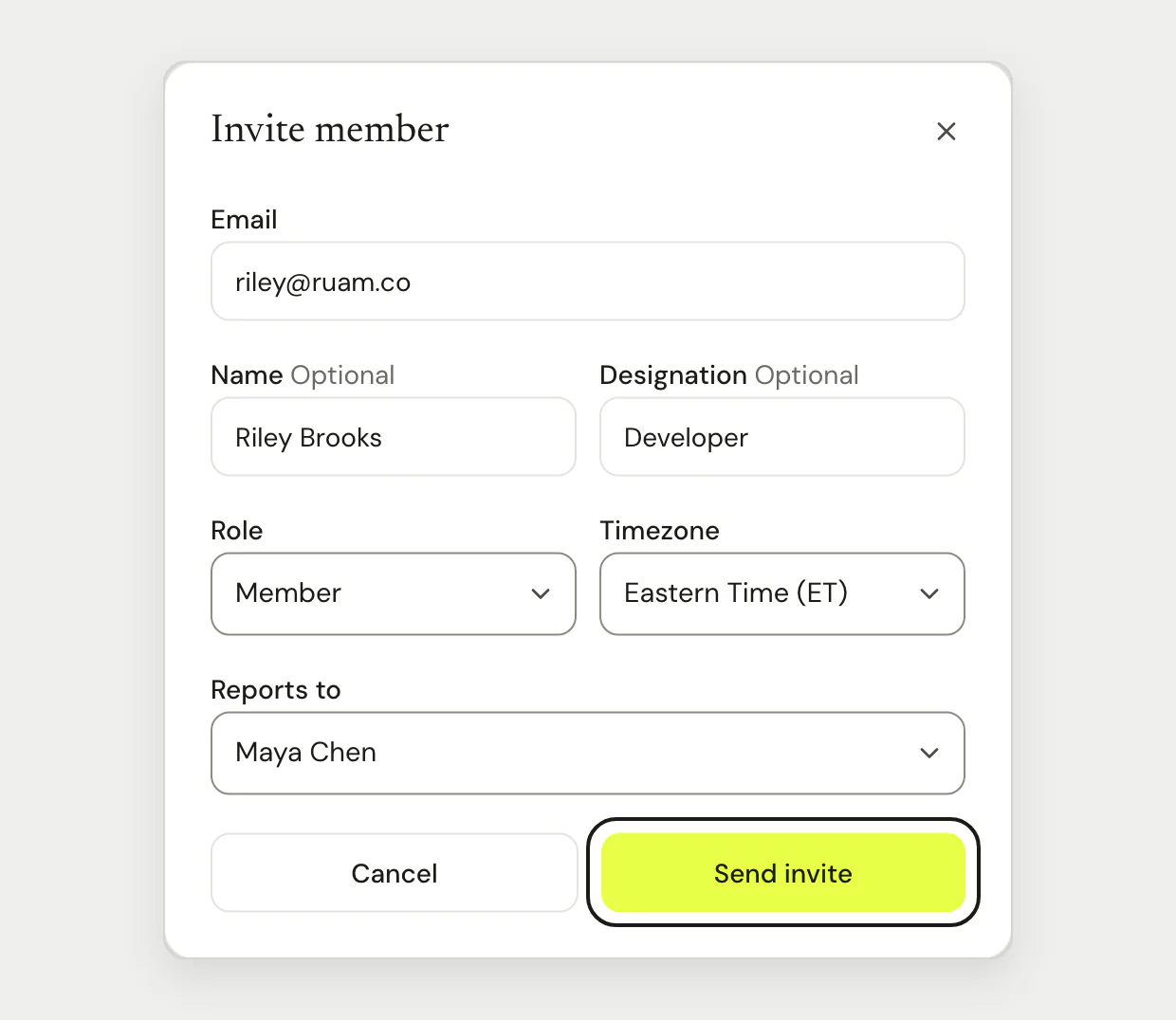
- Type their Email. Name and Designation are optional.
- Choose a Role: Member, Manager or Admin.
- Check their Timezone.
- Choose who they Reports to, or No one (top-level).
Note: On Team and Business, the person they report to reviews the time they add later and their time off. Starter has no reviews or time off, so time counts when it's saved.
Note: If you're a manager, you can invite Members only, and you won't see Reports to. An owner or admin can set it later. Reports to also doesn't show when you choose Admin.
Step 3: Send it
- Click Send invite.
Common questions
Q: Can I invite a lot of people at once?
Yes, if you're an owner or admin. On the Team page, click Import CSV.
Q: How many people can I invite?
Starter is for up to 10 people. When it's full, the invite window says so. To add more, move to Team from Settings > Plan and billing.
Q: Someone didn't get the email. What do I do?
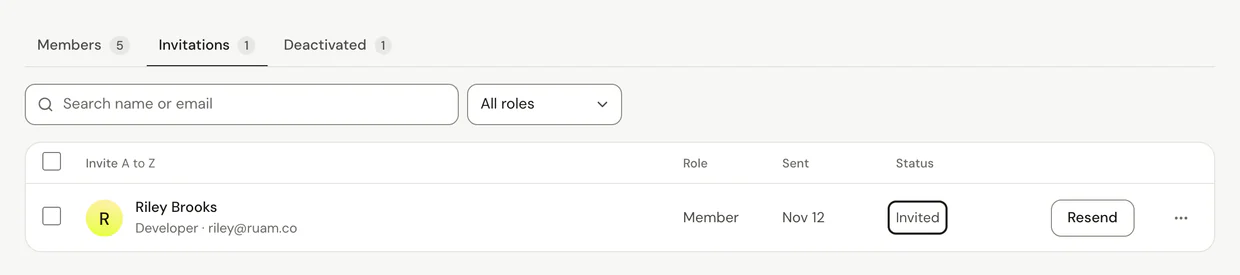
Ask them to check their spam folder. Then click Resend on their row on the Invitations tab.
Q: What happens when they join?
They read how Ruam works and what the team can see, which takes about a minute. Then they set up Ruam and start counting.
What's next?
Need help? Go to Settings > Help and support and press Open chat, or email us at support@ruam.ai.