Deactivate or bring back someone
Take someone off your team, and what happens to their hours.

On Team, open the menu on the person's row and click Deactivate. Their hours stay, and you can bring them back any time.
Deactivate someone
Step 1: Find them on Team
- Click Team in the sidebar.
- On the Members tab, open the menu at the end of their row.
- Click Deactivate.

Step 2: Confirm
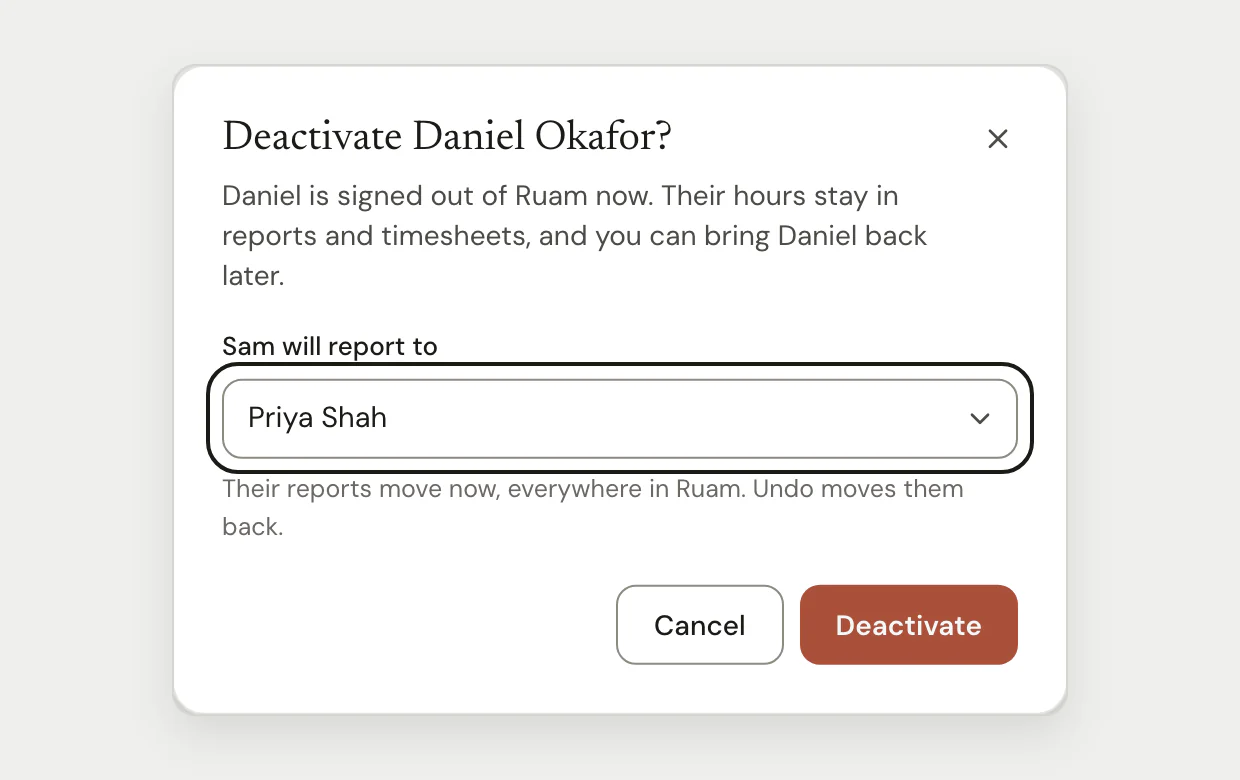
- If people report to them, choose who those people report to next.
- Click Deactivate.
They're signed out of Ruam at once. An Undo shows in the message at the bottom of the page if you change your mind right away.
Bring someone back
Step 1: Open Deactivated
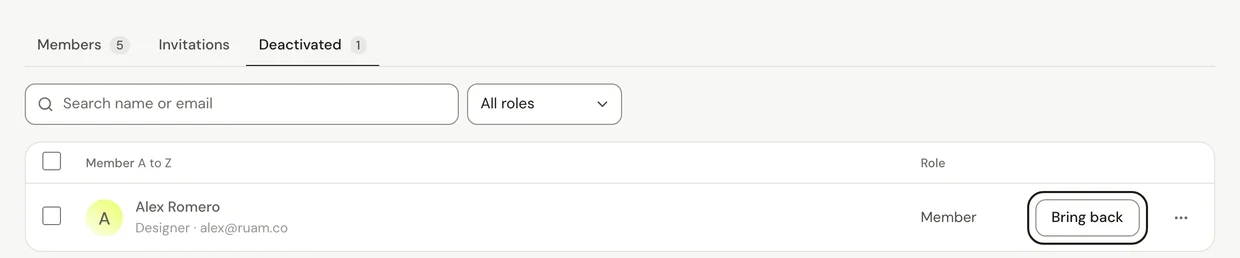
- On Team, click the Deactivated tab.
- Click Bring back on their row.
If they had joined before, they can sign in again. If they never joined, they get a new invite email.
Common questions
Q: What happens to their hours?
Nothing is deleted. Their hours stay in Reports, Projects and timesheets, and their time record is kept.
Q: Can they still sign in?
No. They're signed out of Ruam right away, and their trackers stop counting, until you bring them back.
Q: Does deactivating free up a place on Starter?
Yes. Starter is for up to 10 people, counting open invites, and a deactivated person doesn't take a place. Bringing them back needs a free place again.
Q: Can I deactivate several people at once?
Yes. Pick them on the Members tab, then click Deactivate in the bar that shows above the list.
What's next?
Need help? Go to Settings > Help and support and press Open chat, or email us at support@ruam.ai.