Shifts and your schedule
See your hours, ask for a change, and set your team's schedules.

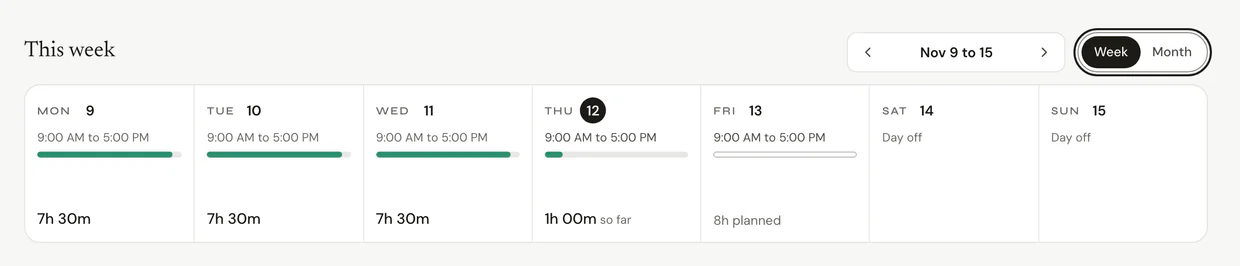
Your hours live in My Schedule. To change a day, open it and press Ask for a change.
Before you start
There are three kinds of schedule:
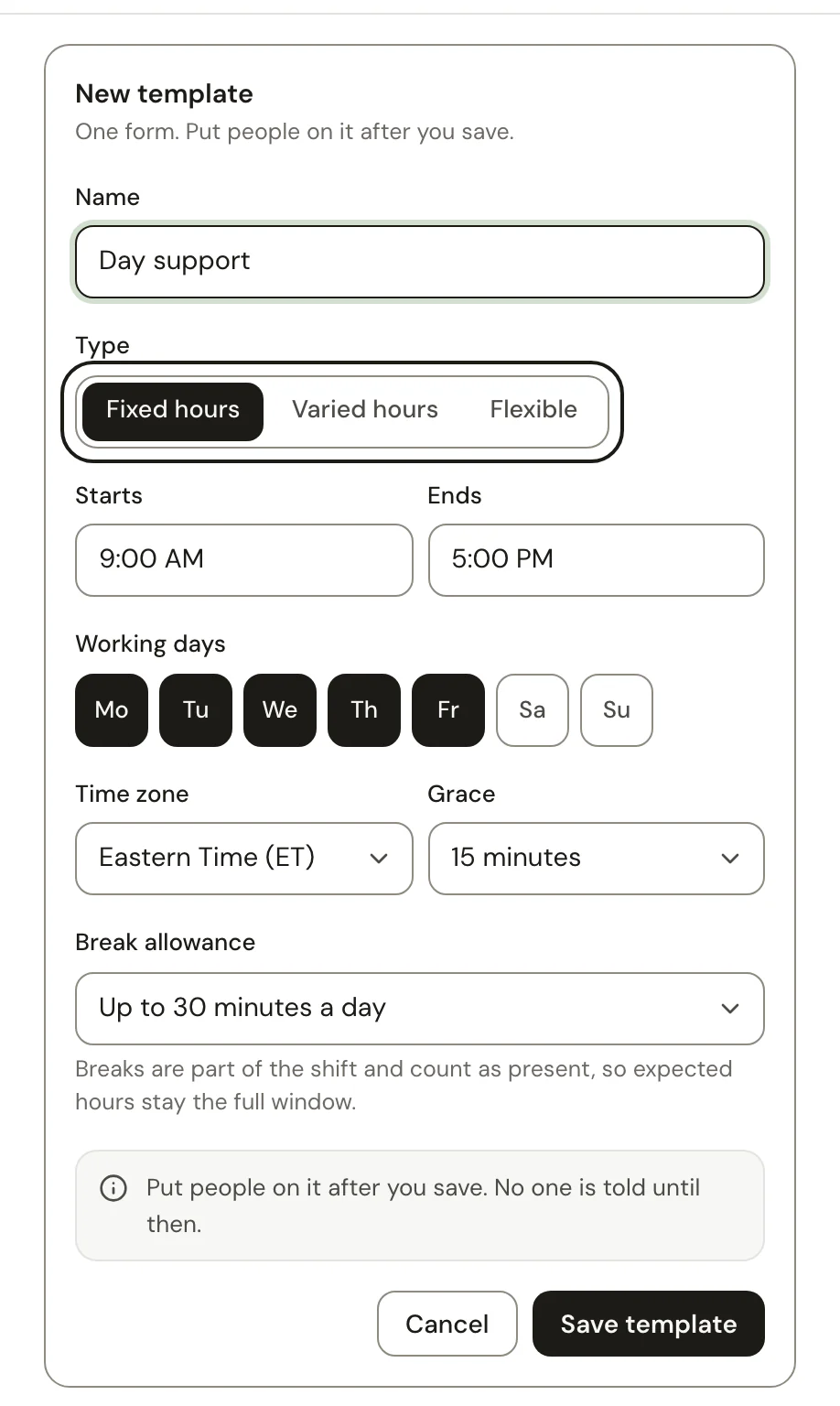
- Fixed hours: the same window every working day, like 9:00 AM to 5:00 PM.
- Varied hours: a different window for each weekday, like late Wednesdays and short Fridays.
- Flexible: a number of hours each working day, with no clock window. People start their own day.
Someone with No schedule starts their own work day, and everything they track still counts.
See your schedule
Step 1: Open My Schedule
- Click My Schedule in the sidebar.
- Switch between Week and Month. Times show in your own time zone.
Step 2: Ask for a change
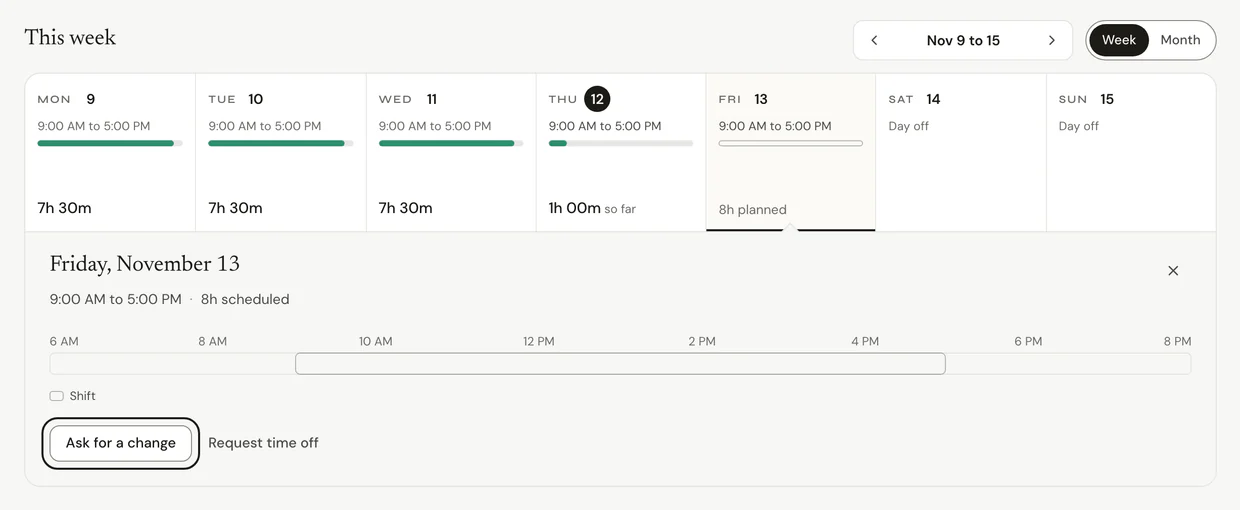
- Click a day that's coming up.
- Press Ask for a change.
- Pick the times you'd like, or write what you need, and press Send. The button names who answers, and they answer in Updates. You can have one open request per day.
Step 3: Add it to your calendar
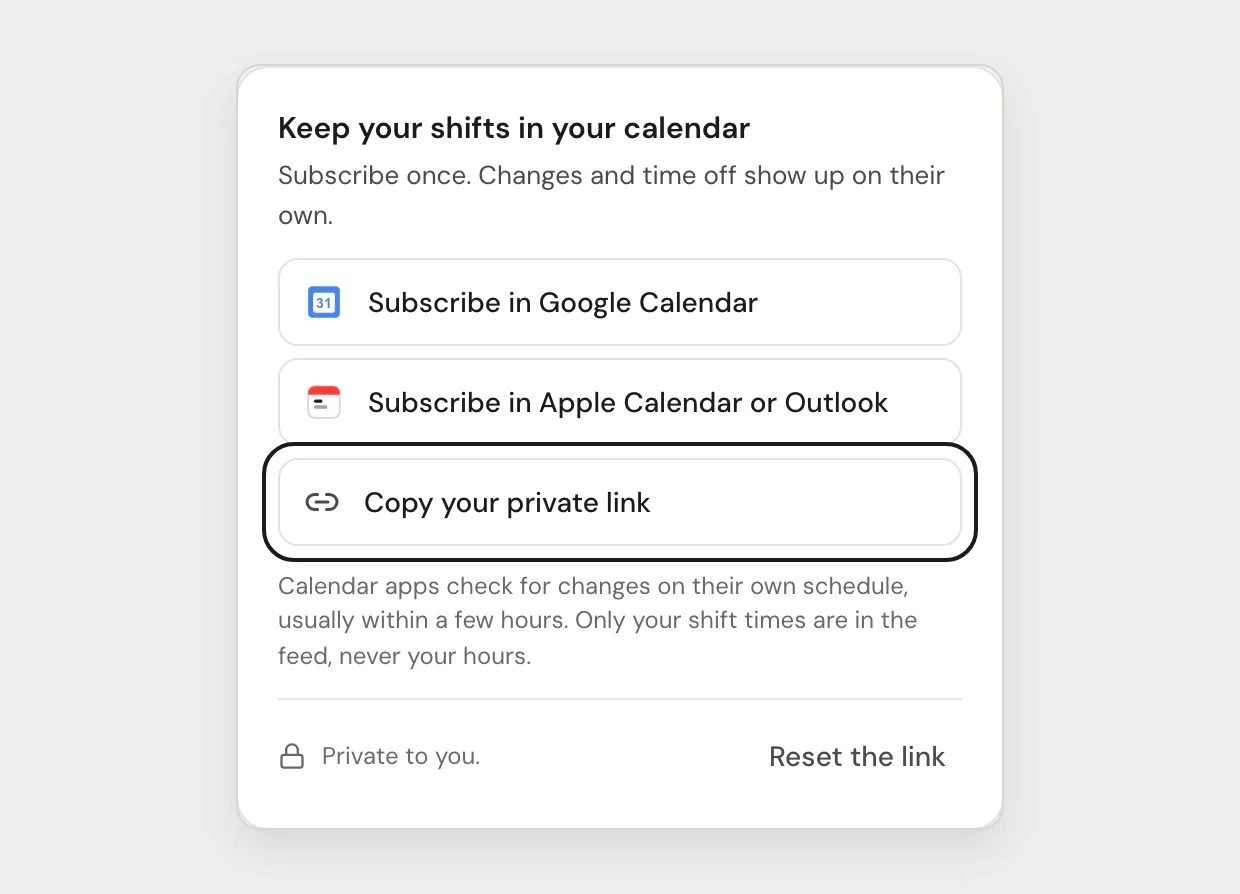
- Press Add to calendar.
- Pick Subscribe in Google Calendar or Subscribe in Apple Calendar or Outlook. Or press Copy your private link and paste it into any calendar app.
Changes and time off show up on their own. The link is private to you, and it holds only your shift times, never your hours.
Set your team's schedules
Step 1: Make a template
- Click Shifts in the sidebar, then Templates.
- Press New, give it a Name, and pick the Type: Fixed hours, Varied hours or Flexible.
- Set the hours and Working days, then press Save template.
Step 2: Put people on it
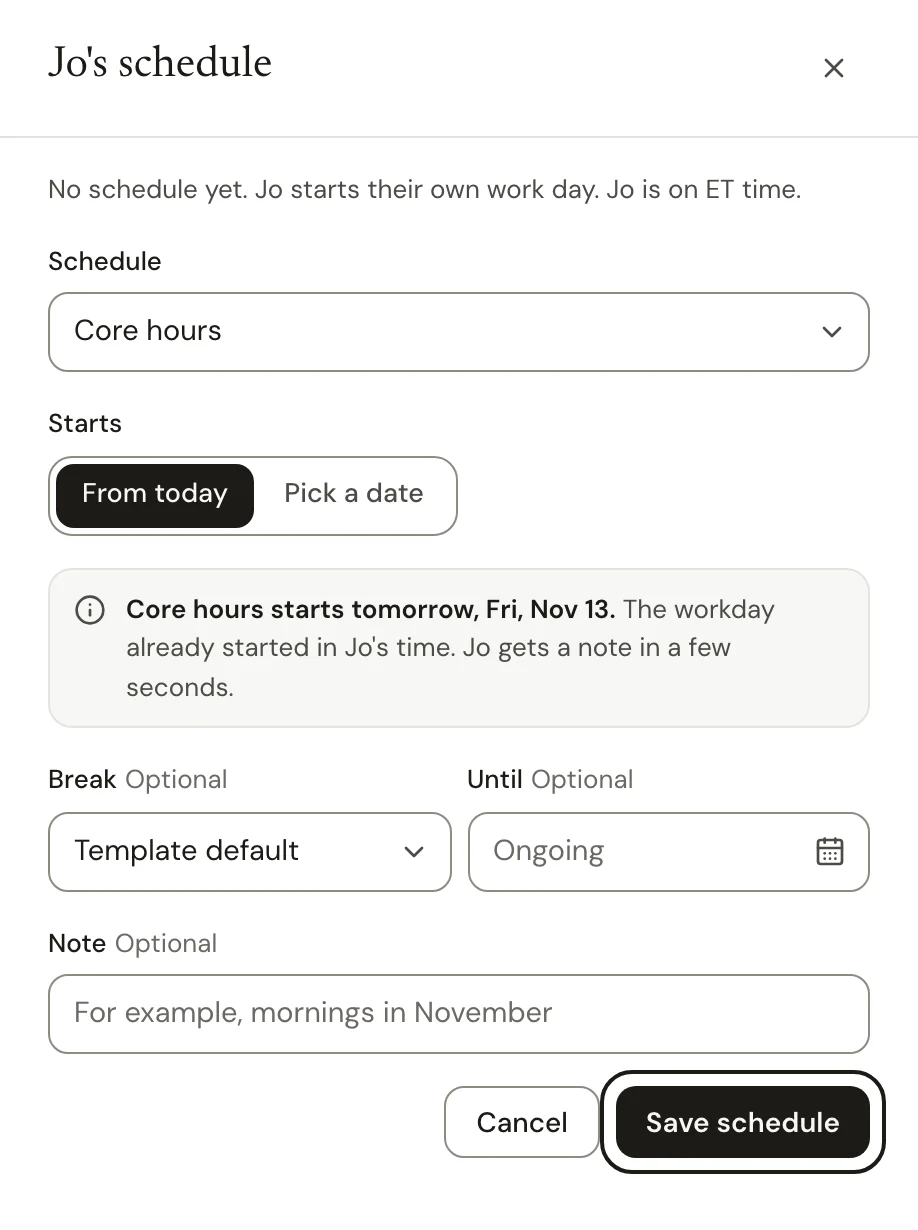
- In Shifts, click a day on the person's row, then Edit their schedule. For someone with no schedule, click Set a schedule.
- Pick the Schedule and when it Starts.
- Press Save schedule. They get a note about the change.
Step 3: Answer change requests
- Requests show at the top of Shifts, like "Sam asked to change a day". Press Answer.
- Give them the times they asked for, press Change the times, or press Decline and reply.

Common questions
Q: I'm a manager. Whose schedules can I set?
The people who report to you. Owners and admins make the templates.
Q: What if I work a night shift?
A shift that runs past midnight belongs to the day it starts.
Q: Can I change just one day for someone?
Yes. In Shifts, click their day and pick Edit this shift. Only that day changes, and the regular schedule stays.
Q: Does time outside my schedule still count?
Yes. Anything you track still counts, even on a day off.
What's next?
Need help? Go to Settings > Help and support and press Open chat, or email us at support@ruam.ai.