How Ruam AI works
What Ruam AI reads, who sees your summaries, and how credits work.

Ruam AI writes a short summary of your day in My Logbook, with a line for each stretch of work. It's off until you turn it on, and only you see your summaries.
Before you start
Ruam AI is part of every plan, for every team. Each person turns it on for themselves. On a team, an owner or admin can also turn it off for everyone in Settings > Ruam AI.
Turn it on
Step 1: Open your day
- Click My Logbook in the sidebar.
- On today, click Get a summary.
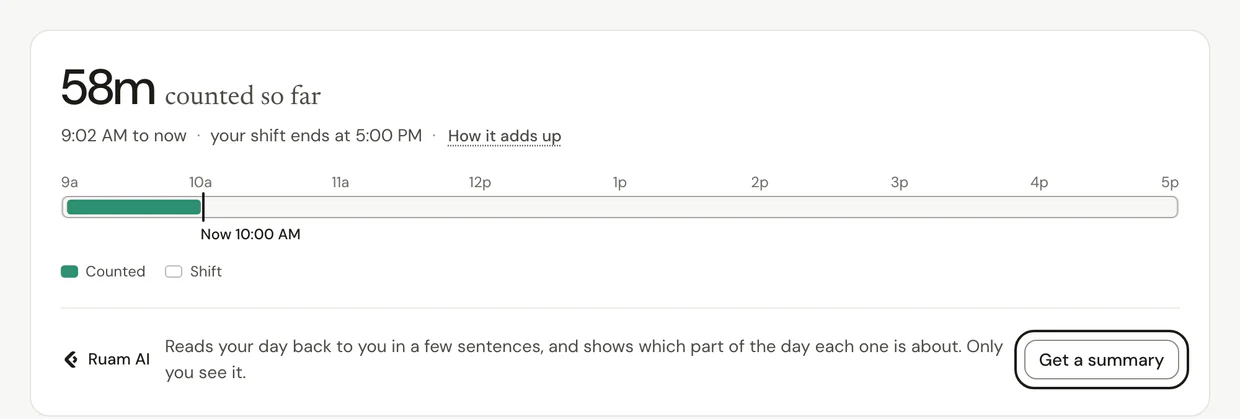
Step 2: Turn it on
- Look over the list at the top. It shows what Ruam AI would read from your day so far.
- Click Turn on Ruam AI.
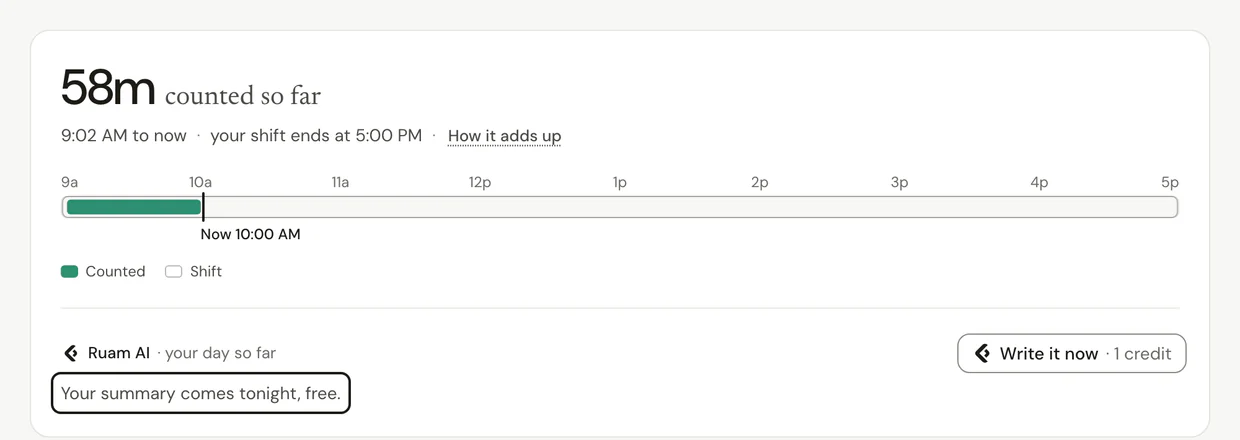
Your summary comes tonight, free. Want it sooner? Click Write it now.
What Ruam AI reads
Only your own day, the way your Logbook shows it:
- When each stretch of work started and ended, and its name, including names you changed.
- Project and client names, ticket numbers like ABC-123, and repo names.
- The apps you used, and website names like acme.com.
- A few page titles from each stretch, cleaned first. These can be email subjects, chat channel names and meeting titles, with other people's names in them.
- Notes you add with Add to your day, and your recap answer about tomorrow.
What it never reads
- Links, page paths or full web addresses.
- Email addresses.
- Your name. Ruam AI calls you "you".
- Banking, payments, tax, insurance and health sites. They show up only as "Private site".
- Page titles from payroll, HR, hiring and business finance tools. Only the tool's name goes.
- Patient records.
- Meeting titles about a job or pay matter, like an offer letter. They go as "Private meeting".
- Your mood, your private recap note, time off, breaks and time away.
Want a skipped site in your summaries? Click the button under it in your Logbook, like Include Gusto in Ruam AI summaries. To skip it again, go to Settings > Ruam AI and click Remove under Skipped sites. Patient-record systems are always skipped.
Where your day goes
Ruam sends your day to our AI provider to write the summary. It isn't used to train AI. Our AI provider deletes it within 30 days. If its safety checks flag a request, it can keep that one for up to 2 years. See Our AI providers.
Ruam keeps your summaries and notes for 30 days, then deletes them. A summary never changes your hours: how long each stretch took always comes from your counted time.
Credits
The summary that comes each night is free. Other summaries use credits:
- Write it now or Refresh: 1 credit. If nothing is new since the last summary, it says Up to date and uses none.
- Past days: 1 credit a day, for days with work in the last 30. They're ready within the hour.
- A draft of your Daily recap written by Ruam AI: 1 credit.
- Copy for standup, and the summaries on Week and Month: no credit. They're built from your daily summaries.
If Ruam AI can't write a summary, the credit isn't used.
Your plan includes credits every month. They reset on the 1st, and unused ones don't roll over:
- Free: 50
- Solo: 300
- Starter: 1,000
- Team: 3,000
- Business and Enterprise: 10,000
A trial gets one set of credits for its 7 days: 100 on the Solo trial, 300 on a team trial. Past days reach back 7 days on a trial, and trial credits don't carry into a paid plan.
See how many are left in Settings > Ruam AI.
Buy more credits
The owner can buy credit packs on Solo, Starter, Team and Business.
Step 1: Open Plan and billing
- Click Settings, then Plan and billing.
- Under Ruam AI credits, click Buy credits.
Step 2: Pick a pack
- Pick a pack. Its price shows before you pay.
- Click Continue to payment.
A pack lasts 6 months from the day you buy it. Your plan's monthly credits are used first. Packs can't be refunded.
Turn it off
- Go to Settings > Ruam AI.
- Click Turn off Ruam AI summaries, then Turn off and delete.
Your summaries and notes are deleted right away. Your hours and your Logbook stay as they are.
On a team
- Credits are shared by the whole team. Ruam shows the team's total, never each person's.
- One person can't use up the whole team's credits.
- On Team, Business and Enterprise, you can share a summary. Click Share with my team under it. Your manager and the team's owner and admins then see it on your day in Reports, marked as written with Ruam AI. If you refresh it, they see the new one.
- Click Stop sharing anytime. Hiding a summary stops sharing it too.
- An owner or admin can turn Ruam AI off for everyone in Settings > Ruam AI, under Organization. Everyone's summaries are deleted, and that can't be undone.
Common questions
Q: I'm out of credits. What still works?
Tonight's summary still comes, free. Write it now and past days come back when credits reset on the 1st, or when the owner buys a pack.
Q: A summary got something wrong. What do I do?
Click the ... menu next to it, then This isn't right. Ruam hides that summary.
Q: Can I get summaries for days before I turned it on?
Yes, for days with work in the last 30. Go to Settings > Ruam AI and click Summarize past days. Each day uses 1 credit.
What's next?
Need help? Go to Settings > Help and support and press Open chat, or email us at support@ruam.ai.